Features
Preventive policies
Auto-approve, block, or flag installs by risk level, software type, or publisher.
Preventive policies decide what happens to software automatically — so the safe stuff clears itself and the risky stuff is stopped or flagged without manual review.
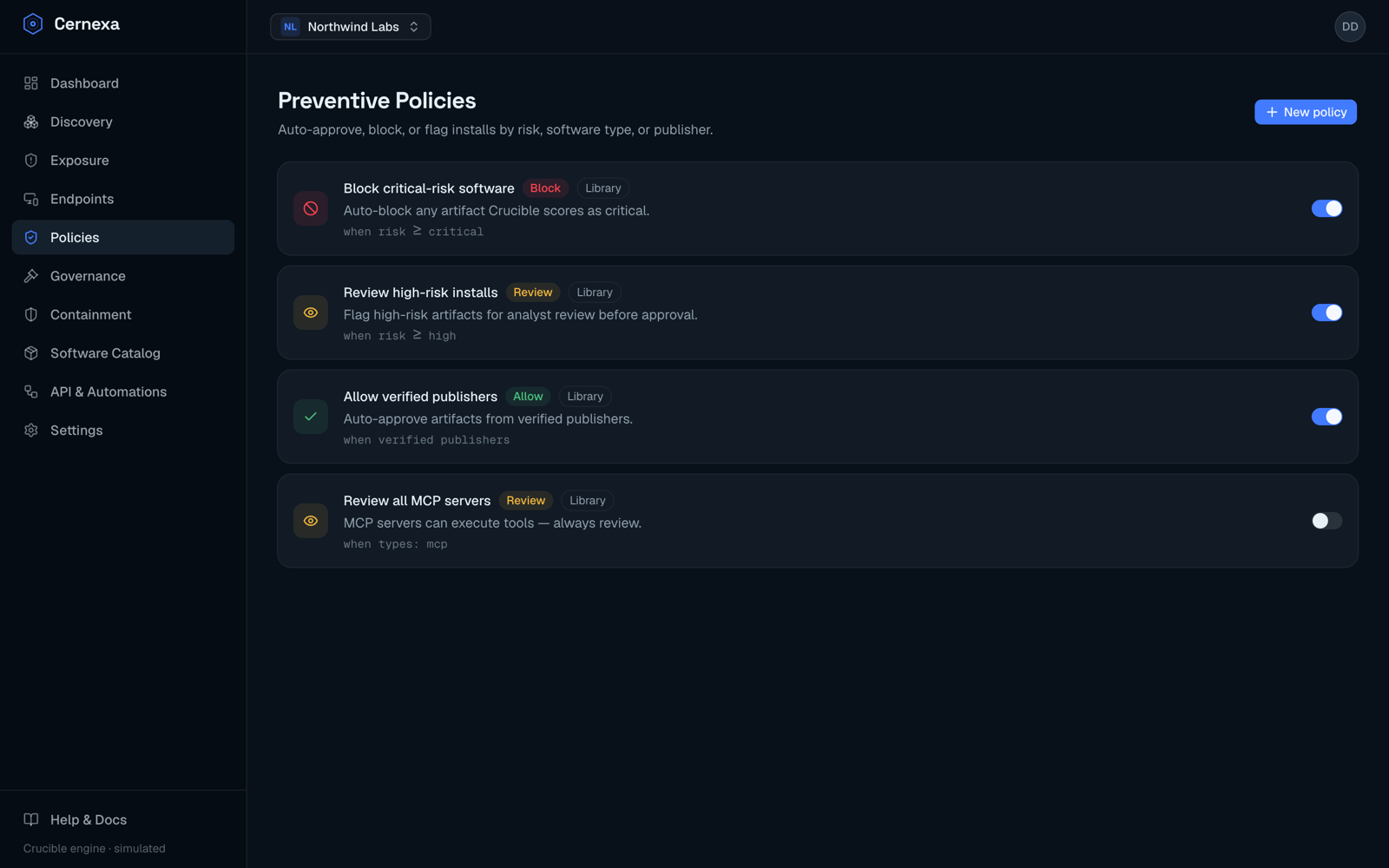
Create a policy
Go to Policies and click New policy. A policy has three parts:
- Name — a description of intent, e.g. Block crypto-miner extensions.
- Action:
- Allow — auto-approve matching installs.
- Block — prevent matching installs.
- Review — flag matching installs for a human.
- Scope — what to match on:
- By risk level — applies to anything with a Crucible score at or above a threshold (low, medium, high, critical).
- By software type — extensions, packages, MCP servers, models, IDE plugins (multi-select).
- By publisher — verified publishers only, or unverified.
- All software — applies org-wide with no conditions.
How policies are evaluated
Policies run in order, first match wins. Put your most specific rules first and broader rules last. A typical setup:
- Allow — verified publishers with risk under 20
- Allow — catalog-approved software (see Software Catalog)
- Block — risk ≥ 70 for everyone
- Block — MCP servers with credential access
Where policies apply
- At install time, the Supply Chain Gateway consults your policies to allow, review, or block before software reaches a machine.
- Continuously, as agents report, matching installs are auto-approved or blocked according to your rules.
Policies set the automated baseline; Governance lets you make explicit, durable allow/block decisions on specific artifacts that override the defaults.